
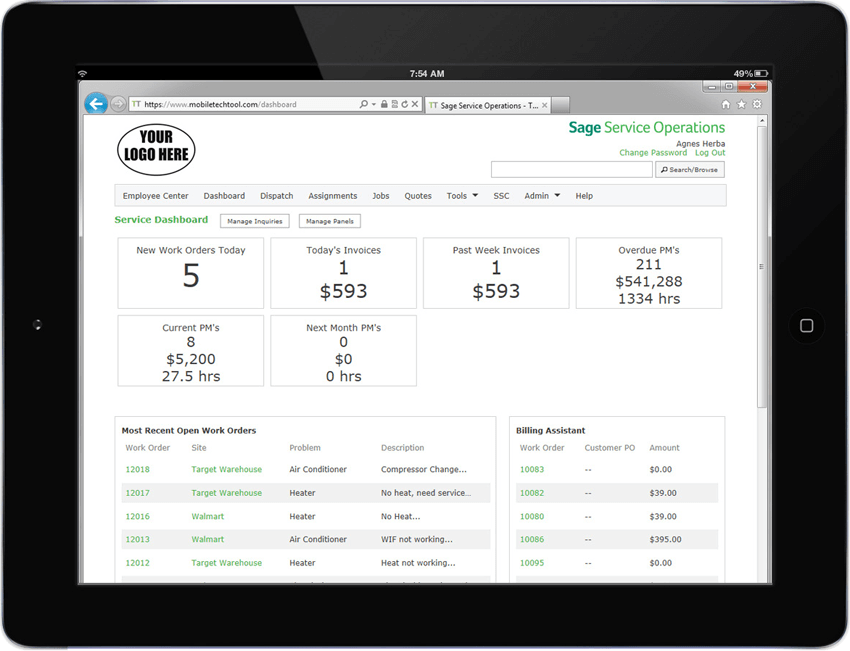
Did you know you can enhance visibility on your Sage Service Operations Dashboard (View) using Manage Panels and Manage Inquiries? These options allow you to create on-screen reports and setup them up on your dash board. Let’s take a closer look at how it works.
Creating a New Inquiry
Suppose you want to see, at a glance, open work orders for your techs.
First, let’s setup the inquiry. Under menu, select the Manage Inquiry option.
- Select new inquiry
- Enter inquiry name (i.e. Open work orders by technician)
- Select status – active
- Select type – work order
- Select the following fields. WO#, WO DATE ENTERED, PROBLEM, TECHNICIAN, DESCRIPTION
- Select sort option – work order date in descending order
- Under users select those users whom you want to provide visibility
- Save to exit screen
- Select filter and click add
- Select wo status in open


Adding Inquiries to Your SSO Dashboard
Now, let’s add the new inquiry to your Sage Service Operations (SSO) dashboard:
- Select the Dash Board
- Select menu, select manage panels
- Select Open work orders by technician
- Click save


Choose addition menu options on the menu bar on the inquiry such as the wrench to choose the number of rows to display and how often you want to refresh.

Do you want an overview of the work order from here? Click on work order number within the inquiry:

Do you manage specific sites?
Are your techs typically at specific locations?
Think of the possibilities build the inquiry, setup the filter, then add the panel.
Did you know that you can allow your field technicians to create work orders from the field?
This does require adjusting your settings and elevating permissions. However, think about this … enter work orders for after-hour emergency calls. No more lost paper tickets in the truck and no more entering work orders in the back office after the fact.
- Assuming you’re on the assignments page
- Select menu
- Select work order
- Under service site look up Enter the site name or address
- Enter pertinent work order detail
a. Select problem
b. Select call type
c. Select assign to (or accept default)
d. Enter description
e. Generate work order


Assuming your workflow requires acknowledgement of the assignment. What if the tech is not looking at the tablet? Did you know that you about notifications? It’s not uncommon the techs have I-phone and/or tablet. Turning on the alert functions in the devices when an e-mail and/or text is received. Notifications serve way to e-mail communications to the technicians as quick reminder they have been assigned a work order.
- Select Tools
- Select Notifications
- Enter work order number
- Get Details
- Click send notification
- Select a technician
- Select a cc (if applicable)
- Enter a note. (i.e. Please acknowledge receipt of work order)
- Select send notification


Next Up: Using Alerts
Do you have accounts you service where there are specific instructions for your techs need to know?
Any safety concerns?
Keep your eyes out for our next article when we talk about using alerts.


